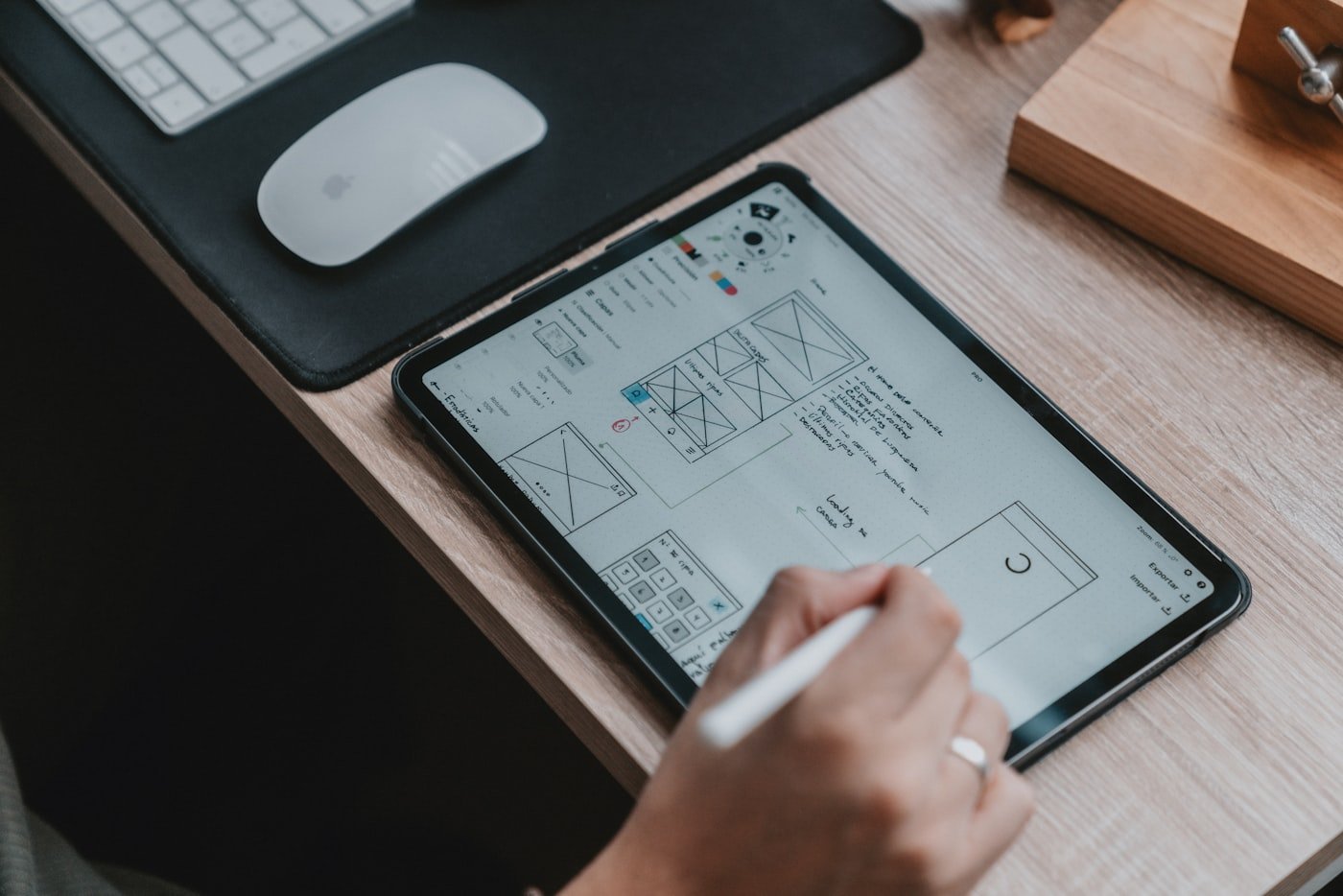
Updated October 2026. Searching for a google stitch ai review 2026? Google Labs Stitch turned “describe a screen” into a real design canvas — text, images, voice, and paste-to-Figma — and the question everyone asks is blunt: google stitch vs figma for ui design, and whether a free AI UI generator is enough to replace your design tool. Short answer: Stitch is excellent for ideation and first drafts; Figma still owns production systems, components, and motion handoff.
This review covers what Stitch is in 2026, how free access actually feels, how google labs stitch export to figma works in practice, where it beats (and loses to) Figma, and a clear verdict: ideation vs production. If you also ship with AI coding tools, pair this with best vibe coding tools in 2026 and the motion side of Figma in our Smart Animate guide.
Table of contents
- What Google Stitch AI is in 2026
- Quick verdict: ideation vs production
- Is Google Stitch AI free worth it?
- Core workflow: prompt → screens → theme → export
- Google Labs Stitch export to Figma
- Google Stitch vs Figma for UI design
- Best AI UI generator vs Figma (where Stitch sits)
- Pros and cons
- When to use Stitch in a vibe coding loop
- Common mistakes that waste a design day
- FAQ
- Soft CTA: run one honest prompt this week
What Google Stitch AI is in 2026
Stitch is Google Labs’ AI-native UI design canvas. You describe an app or flow in plain language (or attach a sketch/screenshot), and it generates high-fidelity screens you can iterate in chat, restyle with themes, and move toward code or Figma. Google has pushed it from a simple generator toward an infinite canvas with a design agent, multi-screen flows, voice iteration, design-system helpers (including DESIGN.md-style rules), and bridges into developer tools.
You still start at stitch.withgoogle.com, sign in with Google, pick Mobile or Web, and generate. The 2026 story is less “one magic screen” and more “keep steering until the flow looks shippable enough to hand off.” That shift matters for this google stitch ai review 2026: the product is judged as a partner, not a one-shot lottery.
Stitch will not invent your product strategy. It will invent plausible layouts. Your job is the same as with any AI coding stack: hard briefs, acceptance criteria, and a human who owns the final system. Soft “make it modern” prompts produce soft UIs — pretty, inconsistent, and hard to implement.
Think of Stitch as a senior-junior designer hybrid that works at generator speed: strong at composition defaults, weak at your domain vocabulary until you teach it. If your product has weird nouns — “habit streaks,” “tenant workspaces,” “claim packets” — put those nouns in the first prompt. Otherwise you get a generic CRM wearing a new coat of paint.
Quick verdict: ideation vs production
Use Stitch for ideation. Multi-screen drafts, mood exploration, stakeholder demos before you open a blank Figma file, and “what if we tried a denser dashboard?” experiments. Generators are cheap when you are still deciding what the product is.
Use Figma for production. Design systems, shared components, auto-layout discipline, variables/tokens, prototyping with real transitions, and developer handoff that names durations and matching layers. When motion matters, read Figma motion handoff for developers — Stitch will not replace that contract.
If you only need a pitch deck of screens by Friday, Stitch is often enough. If you need a design system that survives ten features and three engineers, stay in Figma (or paste Stitch output into Figma and treat it as raw material).
A useful litmus test: can you point to one shared Button, one type scale, and one spacing rule that every new screen must inherit? If not, you are still in ideation — Stitch territory. If yes, you are in production — Figma (or equivalent) territory. Crossing that line without noticing is how teams ship three different primary buttons in one week.
Is Google Stitch AI free worth it?
For most builders asking is google stitch ai free worth it, the practical answer is yes — as a free (or Labs-tier) ideation surface, not as a full replacement for a paid design seat. You get speed: prompts to multi-screen drafts without learning Auto Layout first. You get optionality: paste into Figma when a designer joins. You get a low-risk way to explore layouts before you burn engineering time.
What “free” does not mean: unlimited production quality, perfect accessibility, brand-perfect tokens, or a guarantee that Labs experiments stay free forever. Treat free access as leverage for early exploration. Budget Figma (or your team’s design tool) for anything that ships to customers for months.
Worth it if you are a founder, indie hacker, or engineer who needs screens before a designer exists. Not worth treating as your only design system if you already have a mature Figma library — use Stitch to propose variants, then merge the good ideas by hand.
Pricing and quota details change as Google Labs evolves. This review does not invent monthly volume stats. Check the product UI and Labs notes for current limits before you plan a sprint around unlimited generations.
Core workflow: prompt → screens → theme → export
A reliable Stitch session looks like a thin product brief, not a vibe dump:
- Write the job. Who the user is, what they create, which screens matter (home, list, detail, settings), and what is out of scope.
- Generate Mobile or Web deliberately. Do not mix breakpoints in one vague prompt.
- Name the screens. When Stitch asks for specifics, list them. Homepage, search, profile, detail, playback — same discipline as a Crisp-E prompt.
- Edit with evidence. “Add an empty state with one primary CTA” beats “make it better.”
- Theme once. Light/dark, palette, radius, font — then stop restyling forever.
- Export with a plan. Figma for design collaboration; front-end code only if you will review it like any AI scaffold.
Image upload / experimental modes help when you have a whiteboard photo or a competitor screenshot. Expect inspiration, not a pixel clone. Clean up spacing and hierarchy before you call it done.
Voice and agent-style steering (where available in your region) are useful for fast iteration, but they amplify soft briefs. Speak acceptance criteria: “Keep the primary CTA above the fold on mobile; do not add a marketing carousel.”
Also decide whether you are designing a marketing site or an app shell. Stitch will happily blend both if you do not say which. App shells need navigation, empty states, and density. Marketing pages need hierarchy and persuasion. Mixing them creates dashboards with hero copy and landing pages with unexplained sidebars.
Google Labs Stitch export to Figma
Google labs stitch export to figma is one of Stitch’s best features and also where expectations break. Typical flow:
- Select a screen in Stitch.
- Use the Figma / paste-to-Figma action so the design hits your clipboard.
- Open a Figma file and paste (Cmd/Ctrl+V).
- Treat the result as editable raw frames — not a finished library.
What usually works: structure, basic text, colors, and a layout you can reshape. What usually needs cleanup: layer names, componentization, variables, consistent Auto Layout, and any interaction or motion intent. Paste is a bridge, not a design-system import.
After paste, do this before you hand anything to engineers:
- Rename layers to stable names you will keep across frames (critical if you later use Smart Animate).
- Convert repeating pieces into components.
- Map colors and type to variables if you have a system.
- Write motion separately — Stitch screens are static drafts; production motion still needs the habits in our Smart Animate explained post and the developer handoff guide.
If your team lives in Figma already, Stitch is a generator upstream of the file — not a parallel source of truth.
One workflow that works for small teams: generate in Stitch, paste only the winning screens, rebuild the primary components once in Figma, then never paste the same screen again — only extend the library. Repeated paste-without-componentize is how “AI speed” creates a slower cleanup tax than drawing the frames yourself.

Google Stitch vs Figma for UI design
People search google stitch vs figma for ui design as if one must die. They solve different jobs.
| Dimension | Google Stitch AI | Figma |
|---|---|---|
| Blank-page speed | Excellent — prompt to multi-screen draft | Slower unless you already have a kit |
| Design systems | Improving (themes, DESIGN.md-style rules, URL extract in Labs) | Mature components, variants, variables |
| Collaboration | Strong for solo + AI agent loops | Industry default for multiplayer critique |
| Prototyping / motion | Not a Smart Animate replacement | Prototype + handoff is the job |
| Dev handoff | Code export + Figma paste | Dev Mode, specs, shared libraries |
| Brand polish | Good drafts, easy to look generic | Where brand systems live |
| Cost model | Labs / free-tier friendly for exploration | Seat-based for serious teams |
Choose Stitch when you need options before you commit. Choose Figma when the UI must stay consistent across releases. Choose both when Stitch drafts become Figma raw material — the same way AI app builders draft UI before engineers harden it in a real IDE (see AI IDEs vs app builders).
Best AI UI generator vs Figma (where Stitch sits)
In the broader best ai ui generator vs figma conversation, Stitch sits with prompt-to-UI tools that optimize for speed and exploration. Figma sits with systems that optimize for continuity. Other generators (including code-first UI tools) may export cleaner React; Stitch’s advantage is Google Labs iteration, multimodal inputs, and a Figma-friendly paste path for design teams.
Do not crown a “best” tool in the abstract. Crown the best tool for the phase:
- Phase 0 — idea: Stitch or any strong generator.
- Phase 1 — product shape: Stitch + stakeholder feedback, then freeze a screen list.
- Phase 2 — system: Figma components and tokens.
- Phase 3 — build: engineering with motion/spec handoff; AI coding tools from your free vibe coding options or paid IDEs.
If a tool claims to replace Figma entirely, ask how it handles multiplayer libraries, versioned components, and reduced-motion specs. Most AI UI generators fail that test — including Stitch — and that is fine if you use them honestly.
Pros and cons
Pros
- Fast first drafts. Text → multi-screen flows without wrestling frames for an hour.
- Multimodal inputs. Sketches and screenshots become usable starting points.
- Theme controls. Global-ish restyles for color, radius, and type beat per-frame tweaking early on.
- Figma bridge. Paste-to-Figma keeps design teams in their home tool.
- Code path. Front-end export helps engineers vibe a scaffold — then review it.
- Low friction to try. For people asking if free access is worth it, exploration cost is low compared to hiring a full design sprint for throwaway ideas.
- Agentic iteration. 2026 canvas/agent updates make “steer while it builds” more realistic than one-shot generations.
Cons
- Not a production design system. Components, tokens, and brand nuance still need human ownership in Figma (or equivalent).
- Generic aesthetics. Soft prompts yield “AI default” UIs that look like every other SaaS demo.
- Motion and micro-interactions are thin. You still need Figma prototyping and a real handoff for Smart Animate-level intent.
- Export cleanup tax. Clipboard → Figma is not “done”; rename, componentize, tokenize.
- Labs volatility. Features, limits, and free access can change; do not invent a roadmap of quotas.
- Accessibility and edge states. Empty, error, and loading states need explicit prompts or they stay demo-happy.
- False confidence. Pretty screens are not a validated product. Same trap as soft vibe coding without a stranger path.
When to use Stitch in a vibe coding loop
Stitch pairs well with AI-first building if you keep phases separate. Draft UI in Stitch, freeze acceptance screens, then implement with an IDE or app builder. Do not regenerate the entire UI every time the model fails a backend bug — that is how you waste a day.
Practical loop:
- Stitch: three screens max for the stranger path (signup/create/list or equivalent).
- Paste to Figma only if a designer or motion handoff is coming; otherwise export code carefully.
- Implement with hard briefs from what vibe coding is and your tool stack from best vibe coding tools 2026.
- When animation enters the ticket, leave Stitch — use Figma specs and the handoff checklist.
Stitch is the sketchpad. Your IDE is the workshop. Figma is the contract when more than one human cares about consistency.
Common mistakes that waste a design day
- Prompting “modern SaaS dashboard” with no entities. Name the objects and fields.
- Accepting the first palette forever. Theme once with brand constraints, then lock it.
- Skipping empty and error states. Ask for them in the same session.
- Pasting to Figma and shipping without components. You just created orphan frames.
- Expecting Smart Animate quality from generator screens. Motion is a separate craft.
- Regenerating instead of editing. Conversational edits preserve structure; full regenerations shuffle everything.
- Treating code export as production. Review accessibility, semantics, and responsive behavior like any AI scaffold.
FAQ
Is Google Stitch AI free worth it in 2026?
Yes for ideation and early multi-screen drafts, especially if you do not have a designer yet. It is not a free forever substitute for a production Figma system. Check current Labs access and limits in-product — this review does not invent usage quotas.
Can Google Stitch replace Figma?
No for most teams. Stitch replaces the blank-page panic. Figma still wins for components, multiplayer libraries, prototyping, and developer handoff. Use paste-to-Figma when you need both.
How does Google Labs Stitch export to Figma work?
Use the Figma/paste action, then paste into a Figma file. Expect editable frames that need renaming, components, and tokens. It is a bridge, not a finished design-system sync.
What is the best AI UI generator vs Figma tradeoff?
Generators optimize for speed and exploration; Figma optimizes for continuity and production. Stitch is a strong generator with a Figma-friendly exit. Pick by phase, not by hype.
Should engineers use Stitch before coding?
Often yes — three screens with acceptance criteria beat coding a UI you have not seen. Then implement with review, the same way you would after any mockup.
Soft CTA: run one honest prompt this week
Open Stitch. Write one hard brief: user, screens, fields, empty state, and non-goals. Generate Mobile or Web — not both. Theme once. If the draft survives a stranger walkthrough, paste into Figma or start building. If it does not, edit with evidence instead of regenerating the universe.
For the production side of motion after Figma paste, keep motion handoff and Smart Animate in your reading list. For the coding side, stay grounded in best vibe coding tools instead of chasing every new UI generator announcement.
Verdict: Google Stitch AI is worth using in 2026 for ideation and first drafts. It is not worth using instead of Figma for production UI systems. The winning workflow is Stitch → selective Figma cleanup → engineered product — not “Stitch instead of Figma,” and not “Figma forever with a blank page tax.”
If you remember one line from this google stitch ai review 2026: use the free generator to decide what to build; use Figma to decide how the system stays consistent while you build it.