Updated October 2026. Searching for a figma dev mode handoff checklist that actually survives first implementation? Dev Mode shows CSS, variables, and assets — it does not invent missing states, tokens, or acceptance checks. This page is the engineer-facing checklist: what to inspect before you open a PR, how to pull figma design tokens for developers, and when to refuse a ticket that still hides intent in a frame link.
If your team generates UI with Google Stitch AI or paste-ready AI prompts for UI generation, you still need this checklist. Models invent spacing and hover states even faster than humans do. Pair motion work with our Figma motion handoff for developers guide and the Smart Animate primer in Figma Motion explained. Soft definition if you are new: vibe coding is AI-first building with tight feedback loops — handoff is where those loops stop guessing.
Table of contents
- What a Figma Dev Mode handoff checklist actually covers
- How to use Figma Dev Mode for engineers (10-minute literacy)
- Design to code handoff checklist (printable master)
- Figma design tokens for developers
- Figma developer handoff best practices by surface
- AI builders: extra checks before you paste into Cursor or v0
- Refuse / accept criteria for incomplete tickets
- Common mistakes that waste a sprint
- Pre-implementation Dev Mode walkthrough (engineer script)
- Token mapping worksheet (copy into the ticket)
- Responsive and accessibility rows (do not skip)
- Handoff for multi-file products
- FAQ
- Soft CTA: run one Dev Mode pass today
What a Figma Dev Mode handoff checklist actually covers
A figma dev mode handoff checklist is not “open Inspect and copy the CSS.” It is a contract that names structure, tokens, states, assets, behavior, and acceptance. Static redlines already cover color and type when someone filled Variables. Dev Mode helps you read those decisions. It does not create them.
Treat handoff as five layers:
- Structure — frames, auto-layout, component instances, responsive constraints
- Tokens — color, type, spacing, radius, elevation, semantic aliases
- States — default, hover, focus, pressed, disabled, loading, empty, error, success
- Assets — icons (SVG), images (density), export settings, naming
- Behavior — navigation, overlays, forms, motion, reduced-motion fallbacks
If any layer is missing, engineers invent it — and AI agents invent it louder. Figma developer handoff best practices start with refusing silent invention: write the missing row or send the ticket back.
How to use Figma Dev Mode for engineers (10-minute literacy)
How to use Figma Dev Mode for engineers is a literacy loop, not a plugin tour. Run this once per new screen before you generate code:
- Switch to Dev Mode on the final frames only — not exploration pages.
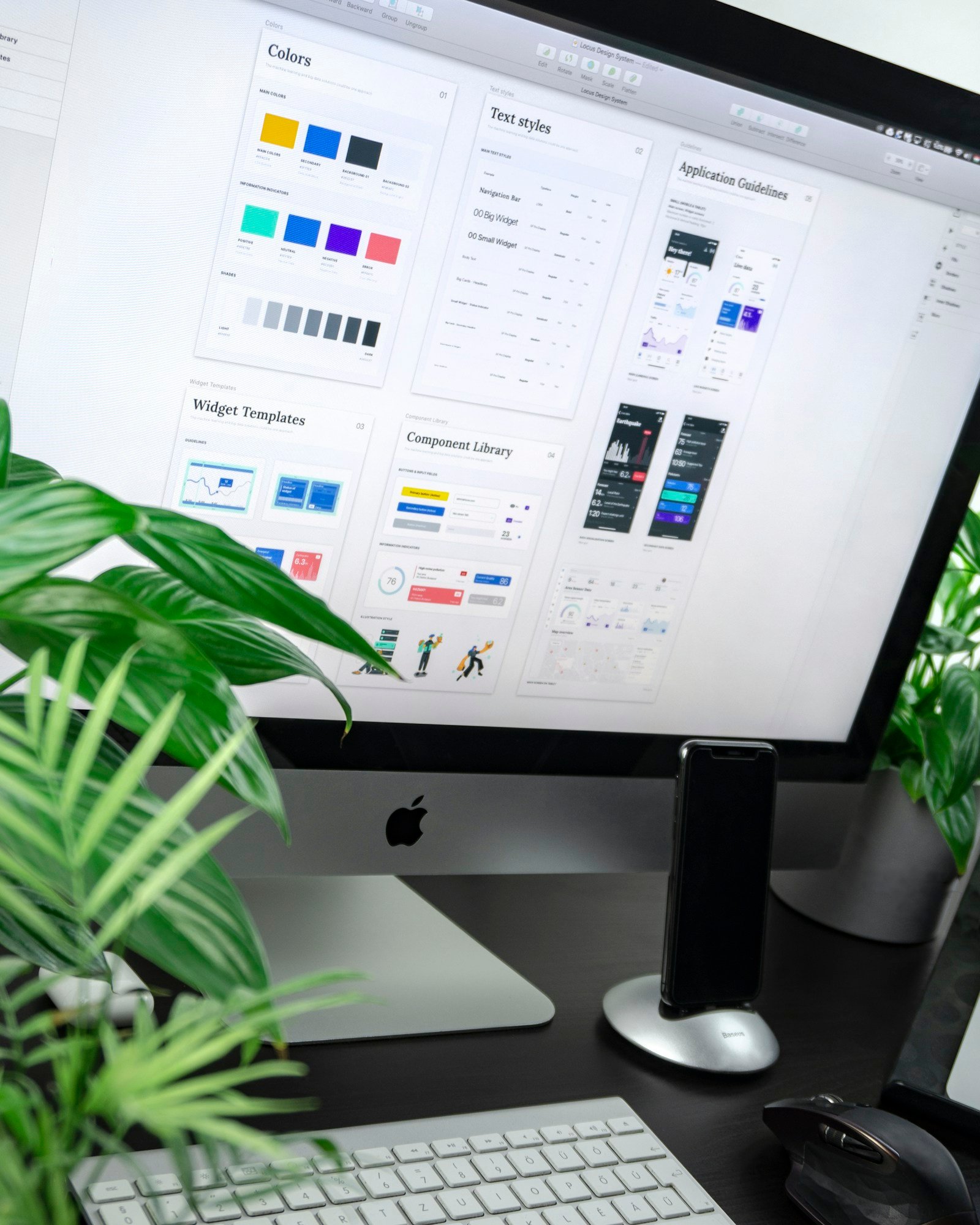
- Confirm Variables / Collections are published for the brand you are shipping. Local unpublished variables are designer drafts, not tokens.
- Select the component instance, not a flattened group. Instances keep variants; groups hide them.
- Read the right sidebar: box model, padding, gap, typography properties, fills, strokes, effects.
- Compare CSS suggestion vs your stack. Tailwind, CSS modules, and design tokens rarely want raw
font: 600 16px/24px Interpasted blindly — map to your token names. - Click through variants (Hover, Disabled, Error). If variants do not exist, the state is not handed off.
- Check Constraints / Auto layout for resize behavior. Fixed-width heroes that should flex will break at 375px.
- Inspect exports for icons and raster assets. Missing export settings mean you will screenshot PNG mush.
- Open Prototype only for motion and overlays — Dev Mode alone will not tell you duration or shared layers.
- Write the acceptance check in one sentence before you leave Figma.
Dev Mode is a reader. Your checklist is the writer. That split is the whole game for a reliable design to code handoff checklist.
Design to code handoff checklist (printable master)
Print or paste this block. It is the compact design to code handoff checklist and the core of figma dev mode handoff checklist searches. Use it as a PR comment template or Notion toggle.
FIGMA DEV MODE — DESIGN → CODE HANDOFF CHECKLIST
Ticket / screen: ________________________________
Frame URL: ______________________________________
Acceptance (stranger can): ______________________

A. STRUCTURE
[ ] Final frames only (no exploration / abandoned variants)
[ ] Correct breakpoint frames (desktop + tablet/mobile if shipping)
[ ] Components are instances (not detached/flattened groups)
[ ] Auto-layout / constraints match intended resize behavior
[ ] Nested lists / cards use consistent item components

B. TOKENS
[ ] Color variables published (semantic: bg, text, border, accent)
[ ] Type styles / font variables mapped to code tokens
[ ] Spacing scale used (no random 13px / 17px)
[ ] Radius + elevation tokens named
[ ] Dark mode (if in scope) uses same semantic aliases

C. STATES
[ ] Hover / focus / pressed defined for interactive controls
[ ] Disabled + loading defined where async
[ ] Empty + error + success for data surfaces
[ ] Form validation copy and placement specified
[ ] Keyboard focus visible (not color-only)

D. ASSETS
[ ] Icons export as SVG; naming matches code icons
[ ] Raster images have 1x/2x or SVG where possible
[ ] Alt text / decorative vs informative noted
[ ] No unexplained placeholder blobs in final frames

E. BEHAVIOR
[ ] Navigation / overlay / sheet vs route change clarified
[ ] Form submit / cancel / destructive confirm specified
[ ] Motion durations + easing OR link to motion ticket
[ ] Reduced-motion fallback written
[ ] Analytics events listed if product requires them

F. ACCEPT / REFUSE
[ ] One-sentence acceptance check written
[ ] Out of scope listed (no drive-by redesigns)
[ ] Ticket refused if A–E incomplete on critical paths
Run sections A–C before you open Cursor. Run D–E before you mark ready for QA. Run F every time — soft “looks fine” approvals train incomplete Figma files.
Figma design tokens for developers
Figma design tokens for developers only work when Variables are semantic and published. Raw hex in Dev Mode is a smell: someone skipped the token layer.
Minimum token set for a shippable screen:
- Color:
bg.default,bg.subtle,bg.inverse,text.primary,text.muted,border.default,accent.primary,danger,success,warning - Type: display / title / body / label / caption with size, line-height, weight, and font family
- Space: 4/8/12/16/24/32/48 (or your scale) — ban one-offs unless branded
- Radius: sm / md / lg / pill
- Elevation: none / sm / md (map to box-shadow tokens, not random blur)
In Dev Mode, click a fill and confirm it resolves to a Variable name — not only a hex. In code, prefer var(--color-text-muted) or Tailwind theme keys over copied #6B7280. When AI generates UI, paste the token table into the prompt so the model stops inventing a second purple.
Export paths teams actually use:
- Design Tokens plugin / Tokens Studio → JSON → Style Dictionary / Tailwind theme
- Figma Variables REST / community exporters → CSS custom properties
- Manual mapping table in the design system docs when tooling is immature
Whatever the path, the checklist item is the same: names match between Figma and code. Renaming Primary/500 in Figma without updating the theme is how “almost the brand” PRs ship.

Figma developer handoff best practices by surface
These figma developer handoff best practices are surface-specific. Steal the rows into your ticket template.
Buttons and controls
- Variants for default / hover / focus / pressed / disabled / loading
- Min hit target 44×44 on mobile; icon-only buttons need aria-label in the ticket
- Destructive actions use danger tokens + confirm pattern
Forms
- Label placement, helper text, error text, and success text all present
- Required vs optional marked; password / OTP / file upload called out
- Keyboard submit and validation timing (on blur vs on submit) specified
Lists, tables, cards
- Empty state frame exists (not a blank artboard)
- Loading skeleton or spinner pattern named
- Pagination / infinite scroll / “load more” decision explicit
- Row actions and overflow menus documented
Navigation and overlays
- Modal vs drawer vs full page — pick one and stick to it
- Focus trap and return-focus called out for accessibility
- Escape / backdrop click dismiss rules written
Motion
- Do not invent 300ms Ease Out because Dev Mode is quiet — open Prototype
- Shared layer names, duration, easing, and reduced-motion fallback belong in the ticket
- Use the mapping habits from the motion handoff guide linked above
AI builders: extra checks before you paste into Cursor or v0
AI builders amplify incomplete Dev Mode. Before you paste a screenshot or “implement this frame” prompt:
- Attach the token table — primary, bg, text, radius, spacing base
- Name the stack — React + Tailwind, Next App Router, etc.
- Cap scope — one screen / one component; ban drive-by redesigns
- List states — empty, loading, error must appear in the prompt
- Paste acceptance checks — stranger-clickable, not “looks modern”
- Link related frames — mobile + desktop if both ship
If you started from Stitch or a generative UI tool, treat the output as a draft frame set. Run the same checklist before you call it a handoff. Soft prompts waste tokens; hard checklists save them.
Refuse / accept criteria for incomplete tickets
Engineers (and AI agents) need a clear refuse line. Accept the ticket when:
- Final frames + variables published for the surfaces in scope
- Interactive components include the states you will ship
- Assets export cleanly
- Acceptance check is one sentence a stranger can finish
- Motion either out of scope or linked with durations
Refuse (or time-box a “clarify” reply) when:
- Exploration pages are marked “ready for dev”
- Hover/focus/disabled are missing on primary CTAs
- Hex soup with no variables on a product that claims a design system
- Mobile is “we will figure it out later” but the roadmap ships mobile
- The only artifact is a prototype link with no token names
Refusing is not drama. It is cheaper than rebuilding the screen twice.
Common mistakes that waste a sprint
- Copying Inspect CSS verbatim into Tailwind projects — fights the theme
- Detaching instances so variants disappear before handoff
- One desktop frame for a responsive product
- Ignoring focus styles because the prototype used mouse-only
- Screenshotting icons instead of SVG export
- Motion by vibes — no durations, then QA says “not like Figma”
- Letting the model invent tokens because the prompt omitted the table
- Marking ready without empty/error frames — first real dataset looks broken
Each mistake is a checklist row you skipped. Fix the row, not the all-hands.
Pre-implementation Dev Mode walkthrough (engineer script)
Use this 15-minute script the first time you touch a new Figma file. It turns “I looked at Dev Mode” into a repeatable figma developer handoff best practices habit.
- Confirm the source of truth. Ask which page and which version is “ready for eng.” Archive or ignore exploration pages so agents do not scrape the wrong frame.
- Snapshot the token inventory. List every Variable collection used on the screen. Note unpublished locals. Paste the list into the ticket.
- Build a component matrix. For each interactive component: variants present? Missing states? Detached instance? One row per component beats a vague “match Figma.”
- Measure the box model once. Pick the densest card or form. Record padding, gap, and alignment. Spot-check two more instances for drift.
- Export a dry run. Export one icon SVG and one raster. Open them locally. Broken exports discovered at QA are expensive.
- Write the stranger test. “User can filter projects and open one detail without horizontal scroll at 375px.” That sentence is your Done definition.
- Decide motion ownership. Either out of scope this ticket or linked with numbers. Silent motion is invented motion.
If you cannot finish the script because the file is incomplete, stop. Clarifying for 20 minutes beats rebuilding for two days. That is the practical meaning of a design to code handoff checklist — it protects calendar time, not just aesthetics.
Token mapping worksheet (copy into the ticket)
Keep this table next to figma design tokens for developers work. Fill left from Figma Variables; fill right from your theme file.
FIGMA VARIABLE              → CODE TOKEN                 NOTES
color/bg/default            → --color-bg / bg-background
color/text/primary          → --color-text / text-foreground
color/text/muted            → --color-text-muted
color/accent/primary        → --color-accent / bg-primary
color/border/default        → --color-border
color/danger                → --color-danger
type/title/md               → text-title-md / font-semibold text-xl
type/body/md                → text-body-md
space/4                     → spacing-1 / p-1 / gap-1
space/16                    → spacing-4
radius/md                   → rounded-md
elevation/sm                → shadow-sm
Rules of thumb: never invent a new hex in code if a Variable exists; never rename a token in only one place; never let an AI model invent a parallel palette “for contrast.” Contrast fixes belong in the token set, not in a one-off class.
Responsive and accessibility rows (do not skip)
Many handoffs fail after desktop looks perfect. Add these rows to every figma dev mode handoff checklist for shipping products:
- Breakpoints: Which frames are binding? 1280 / 768 / 375 — or your product’s set. If only desktop exists, say so in the ticket and accept mobile as a follow-up with a date.
- Reflow: Stack vs squeeze vs hide. Auto-layout wrap hints help; engineers still need the intended pattern named.
- Touch: Primary actions reachable one-handed; no hover-only critical actions on mobile.
- Focus order: Tab order matches visual order; modals trap focus; skip links if the shell is heavy.
- Contrast: Text/icon on accent and muted backgrounds meet AA. Dev Mode will not yell at you — your checklist must.
- Reduced motion: Instant cut or opacity-only fallback when
prefers-reduced-motion: reduce.
Accessibility is not a polish pass after launch. It is a handoff row. If design did not specify focus rings, engineers still ship a visible one and note the assumption.
Handoff for multi-file products
Large products split UI across Figma pages (Foundations, Components, Features). Engineers get lost when the ticket links only a feature frame. Best practice:
- Link Foundations (tokens) + Components (variants) + Feature frame in every ticket
- Pin the library version / file version if your org uses branching
- Call out local overrides that intentionally break the library
- Prefer instance swaps over “redesign the button in-place”
When AI agents are in the loop, put those three links in the prompt. Agents scrape whatever you paste; incomplete context produces confident wrong UI.
FAQ
Is Dev Mode enough for a full design to code handoff?
No. Dev Mode is excellent for box model, variables, and assets. You still need Prototype for motion/overlays, component variants for states, and a written acceptance check. That is why this page is a checklist, not a Dev Mode tour.
What should frontend developers pull first from Figma Dev Mode?
Published variables (colors, type, space), component variant matrix, and exportable icons. CSS snippets are a secondary aid. Token names beat pixel dumps.
How do AI builders use a Figma Dev Mode handoff checklist?
Paste the completed checklist into the prompt: tokens, states, non-goals, acceptance. Then generate one screen. Do not paste a lonely screenshot and hope.
Where do motion and Smart Animate fit?
In a linked motion ticket or a row in section E. Use the Smart Animate and motion handoff posts linked above — Dev Mode will not emit Framer Motion layoutId for you.
What if Variables are unpublished?
Treat colors as drafts. Ask design to publish collections or document a temporary mapping table. Shipping unpublished local values creates theme drift by Friday.
Soft CTA: run one Dev Mode pass today
Pick one screen shipping this week. Open Dev Mode. Run sections A–C of the printable checklist. Write one acceptance sentence. If states or tokens are missing, send the ticket back before you generate code. That single pass is the difference between a clean PR and a week of “make it match Figma” comments.
When the screen includes motion, follow the developer motion handoff next. When you are generating the UI from a brief, keep the UI prompt recipes nearby. Handoff is how AI-fast building stays product-grade.