Introduction
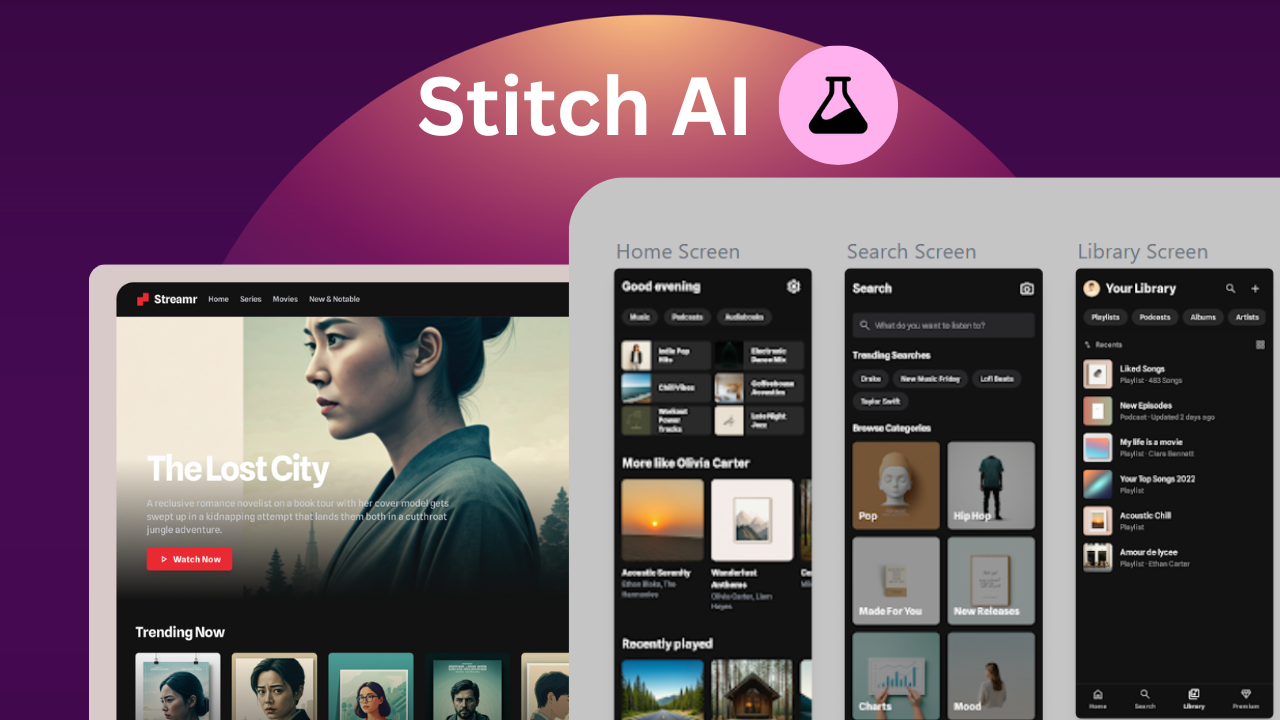
Google has launched a new UI designing AI tool called Stitch. It is currently in beta access and pretty much everyone can access it for free. The cool thing about Stitch by Google is that you can give a simple text prompt, optionally attach an image, and ask the AI to create stunning UIs for your next mobile or web app — and the AI will do it in seconds. The best part? It’s completely free to use.
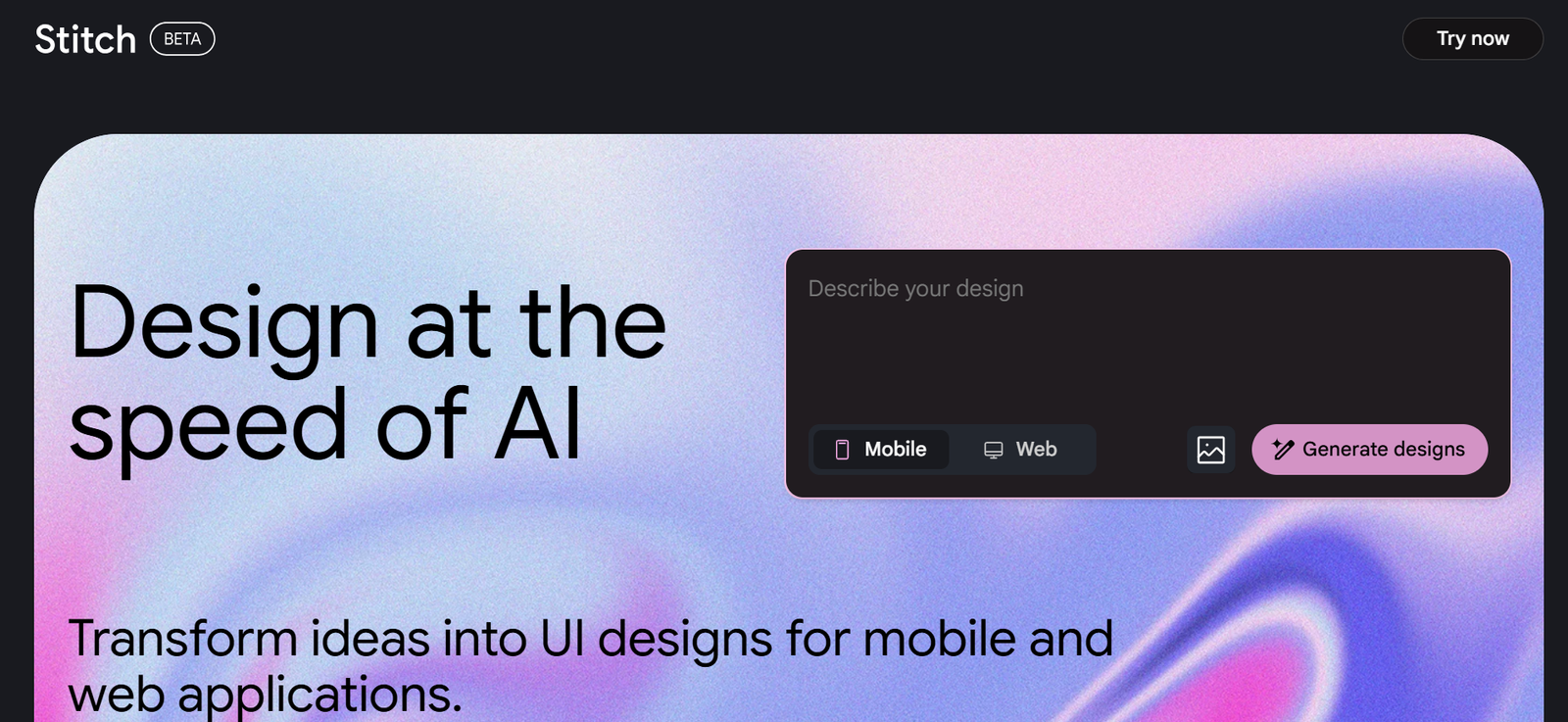
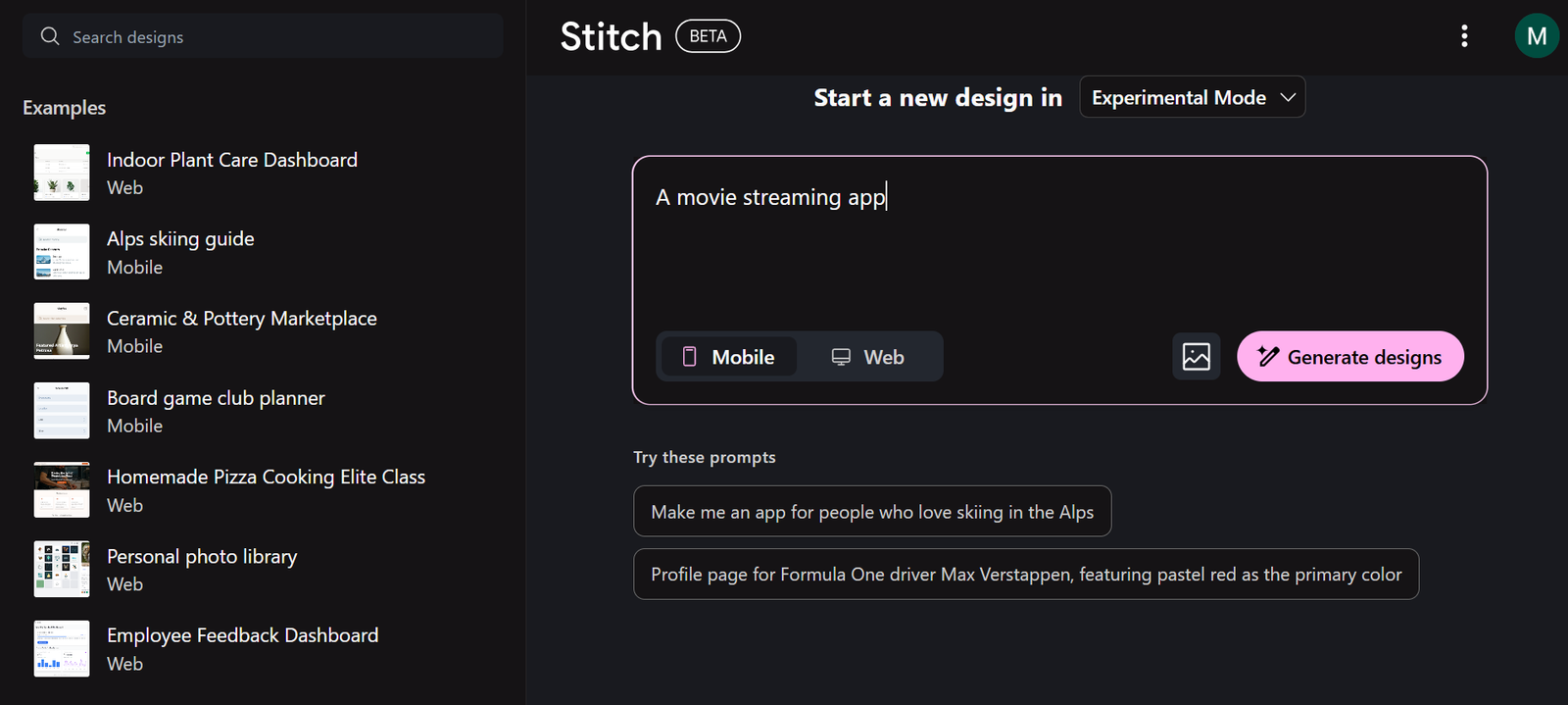
If you want to try it yourself, all you need to do is head over to stitch.withgoogle.com (or click the first link in the description below) and you’ll land on the main page. This is where all the magic happens.
How Stitch Works
The basic workflow is straightforward. After signing in, you describe what you want to design and hit the Generate Design button. The AI then creates a new UI design that you can copy, get code from, or even import straight into Figma.
Step 1: Sign Up
Go to Stitch and sign up with your Google account. Because this is a Google product, logging in with your existing account is seamless and quick.
Step 2: Describe Your Design
In the middle of the screen you’ll see an input box. This is where you type a plain-English description of your idea. You don’t need any special formatting — just tell the AI what you want.
For example:
“A movie streaming app”
You can also be more detailed. After you’ve typed your description, select whether you’re designing for Mobile or Web, then click Generate Desig. The AI will get to work immediately.
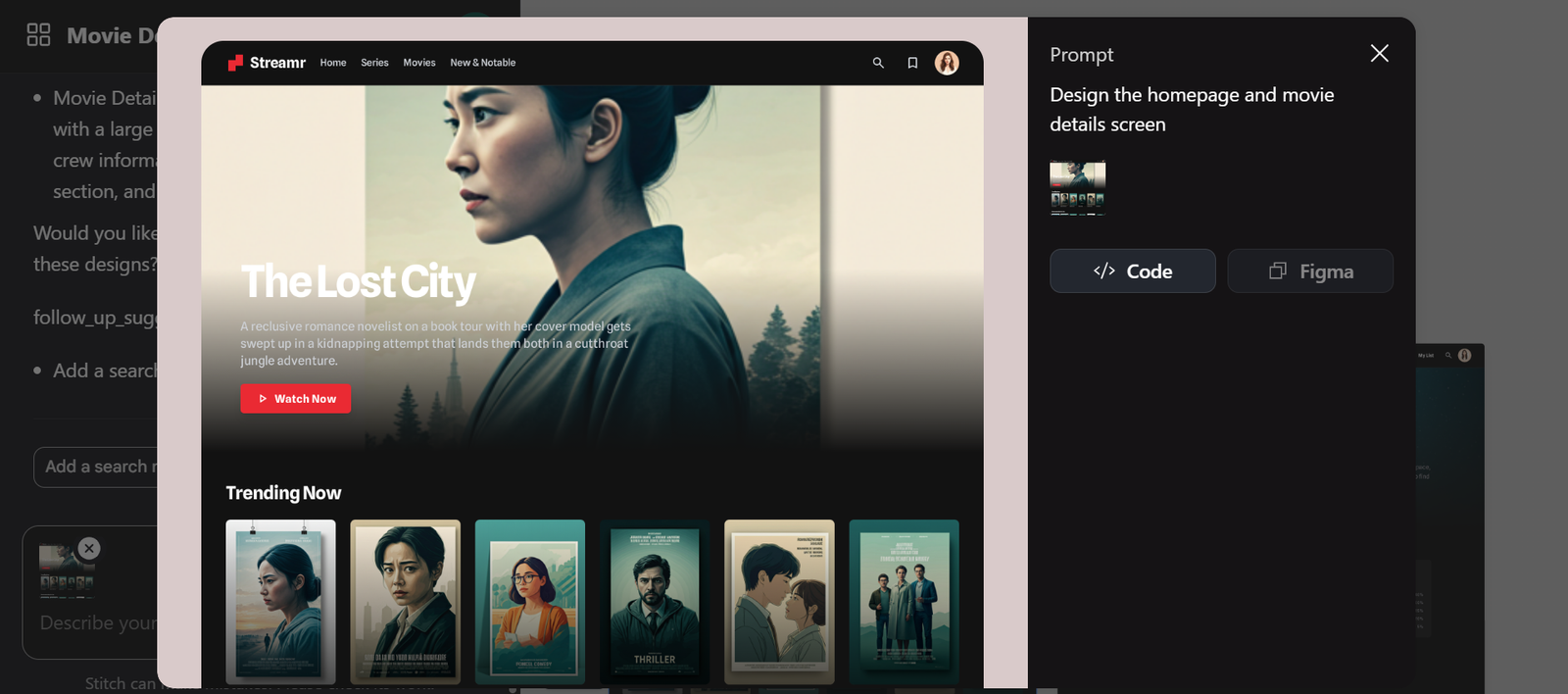
Example: Designing a Movie Streaming Web App
When I typed “a movie streaming app,” Stitch didn’t just produce a single screen. It asked me for more details:
“Could you list the specific screens you would like to include in your movie streaming app?”
This is helpful because you can tell exactly which screens matter to you. In my case, I replied with:
- Homepage / trending movie section
- Search section
- Profile section
- Movie details page
- Movie playback page
Example: Designing a Music Streaming Mobile App
Next, I tried a music streaming app. I typed “a music streaming app,” selected Mobile, and clicked Generate.
This time the AI produced:
- A search page with a search box and album or playlist thumbnails
- A library section
- A main playback page
- A settings page
The whole layout gave off a Spotify-like feel. Thumbnails were consistent, colors balanced, and the structure instantly recognizable. Again, all of this appeared automatically.

Adding Extra Screens
One of Stitch’s strengths is how easily you can add new pages without starting over. For example, I asked it to create a new “sharing” screen. Within seconds the AI produced a sheet element containing sharing options like Copy Link, Messages, Instagram Stories, Snapchat, and more.
This conversational back-and-forth makes Stitch feel less like a generator and more like a design partner — you describe what you want, and it responds with actual screens.
Editing the Theme
You’re not locked into the default look, either. Click the Edit Theme option and you can:
- Switch between light and dark mode
- Change the color scheme
- Adjust corner radius of elements
- Choose a different font
After you apply your changes, all screens update instantly. For example, I changed the font to Inter, chose a new color palette, and tweaked the corner radius. Everything refreshed immediately. It’s like running a global style update across your entire project with one click.
Exporting to Figma
One of the best parts of Stitch is how easily it integrates with Figma. Every generated screen can be copied straight into your Figma file:
- Click the Figma button on the screen you want.
- Stitch copies the design to your clipboard.
- Open a blank Figma project.
- Press Command+V (Mac) or Ctrl+V (Windows).
Your design appears in Figma fully editable. You can click on individual elements, change text, adjust colors, move components — basically treat it like any other Figma design. This makes Stitch an incredibly fast way to go from concept to editable mockup.
Editing Screens with AI
Stitch also lets you edit existing screens using natural language. Click the Edit button, describe the changes you want in the chat box, and hit Enter. The AI will regenerate the screen with your updates. This is perfect for quick iterations without having to redo everything.
Designing for Web Apps
Stitch isn’t limited to mobile. You can also choose Web and generate full web app layouts.
For example, when I typed “a music streaming web app,” Stitch created:
- A homepage
- A search results page
- A library page with liked songs
- A music player page
- A playlist page
All of these were ready to be tweaked, exported, or refined, just like the mobile designs.
Experimental Mode: Uploading an Image
Another exciting feature lives under the dropdown menu: Experimental Mode. This allows you to attach images such as sketches, mockups, or screenshots and have Stitch turn them into a design.
I tried uploading an image with the description “a banking app,” selected Mobile, and clicked Generate Design. Stitch produced a layout inspired by the screenshot I uploaded. It wasn’t an exact copy but it looked good and clearly drew from the layout I provided. For a beta feature, it’s impressive.
Built-In Examples
Stitch also shows off example projects to spark ideas. Some of the ones I saw included:
- A board game club planner
- A homemade pizza cooking class
- An employee feedback dashboard
All were created from simple text descriptions, and each looked polished enough to hand off to a developer. This shows how versatile the tool already is.
Why Stitch Is Exciting
Tools like Stitch signal a big change in how we approach design. Instead of spending hours pushing pixels, you can:
- Prototype faster and go from idea to mockup in minutes
- Explore multiple variations instantly
- Share editable files in Figma without extra work
- Save time and money at the early stages of a project
Of course, you’ll still want a human designer to refine branding, usability, and final touches. But as a starting point, this is incredibly powerful.
Getting Started With Stitch
To try Stitch yourself:
- Go to stitch.withgoogle.com
- Sign in with your Google account.
- Type a prompt describing your app or website.
- Choose Mobile or Web.
- (Optional) Upload an image for inspiration.
- Click Generate Design.
- Edit the theme, copy to Figma, or ask for more screens.
That’s it. You’ll have a working UI design in seconds.
Conclusion
Google’s Stitch is one of the most impressive AI design tools out there right now. It’s free, fast, and surprisingly capable. Whether you’re a developer needing quick mockups, a designer looking to prototype faster, or just curious about UI design, Stitch is worth exploring.
It won’t replace thoughtful design work entirely, but it can massively accelerate your workflow and spark new ideas. And since it’s still in beta, now’s the perfect time to experiment with it before it becomes mainstream or paid.
Head over to stitch.withgoogle.com and start playing around. You’ll be surprised at how quickly you can go from a prompt to a polished interface.